
JunkRemover
QFD CONSULTANTNS ( PRIVATE ) LIMITEDTools
3.364.00 Reviews
- Version
- 1.1.2
- Installs
- 1.00M
- Age Rating
- Everyone
Screenshots
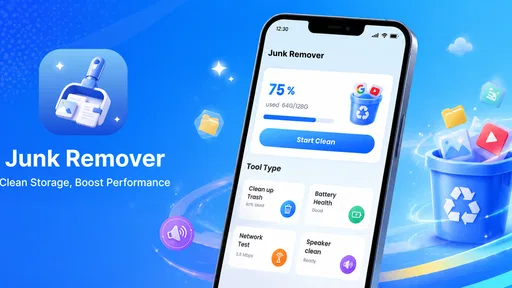
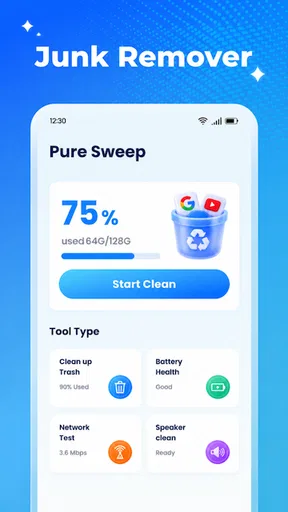
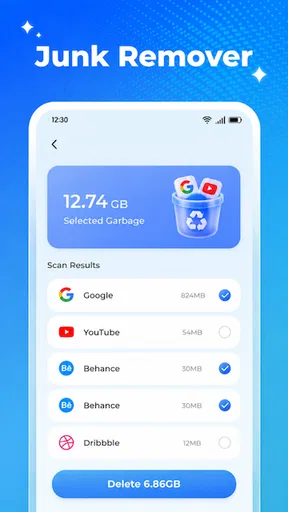
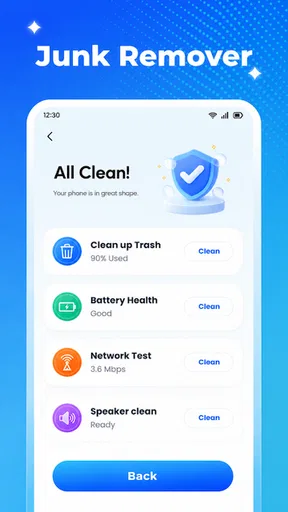
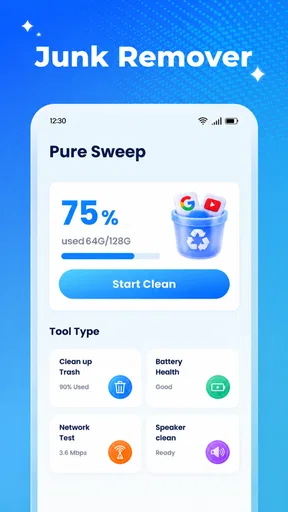
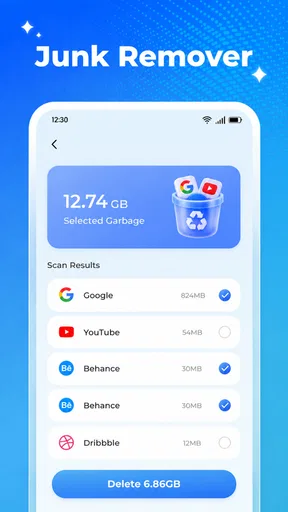
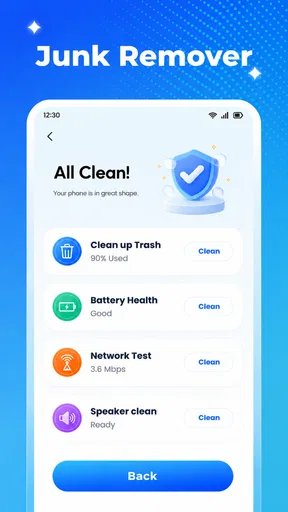
Our Review of JunkRemover
 Analysis by Appyee
I tried JunkRemover as a lightweight Android tool for the familiar problem of a phone gradually filling with unwanted files. Its purpose is easy to understand: help clean phone junk through a simple workflow rather than making the user hunt through folders and settings. That narrow focus is its main appeal. It is free, rated for Everyone, and comes from QFD CONSULTANTNS ( PRIVATE ) LIMITED, so it is aimed at ordinary phone owners rather than technical users who want a full storage-management suite.
My overall impression is cautious but positive. The app feels most useful when I want a quick maintenance check and do not want to spend time sorting temporary clutter manually. At the same time, a cleaner should never be treated as a magic solution for every storage problem. A tool that identifies removable junk is different from one that manages large videos, duplicate photographs, offline downloads, or application data. Understanding that boundary is important before handing any cleanup app permission to inspect the device.
How JunkRemover fits into everyday phone maintenance
The current release is version 1.0.5, and the application requires Android 9 or later. That makes it suitable for a wide range of still-used Android phones, although owners of older devices should check compatibility before planning around it. It has passed the early adoption stage with over one hundred thousand installs and holds a 3.9 average from roughly three hundred ratings. I read that as a sign of genuine interest, but not as proof that every phone will receive the same results.
The first thing I like about this kind of tool is the low mental effort. Storage maintenance is rarely difficult because the user cannot understand files; it is difficult because there are too many places to look. Temporary files, cached material, leftover folders, and application-created clutter can be scattered across the device. A focused cleaner gives that task a beginning and an end, which is more useful than a long list of technical categories that most people never revisit.
That convenience also creates the app’s central trust question: what exactly is being identified, and what will happen when I approve a cleanup? A single-action design can be friendly, but it can also encourage rushed decisions. I would not tap a prominent cleanup control while distracted, especially if I had recently downloaded documents, saved media for offline use, or depended on an application that stores files in an unusual location.
What I would use it for first
My preferred starting point is a routine check before a trip, a system update, or a large camera session. I would run the scan, inspect the categories or items it presents, and then decide whether the suggested cleanup is genuinely disposable. This is more sensible than waiting until Android shows a storage warning, because a nearly full phone can make everyday tasks feel slower and leave little room for new photos or updates.
A realistic example is a phone used for messaging, short videos, maps, and photographs. After several weeks, temporary material can accumulate while the user continues saving important images and documents. In that situation, the app may be helpful as a first pass: it can point attention toward removable clutter without requiring the owner to browse every application’s settings. I would still open the phone’s regular storage view afterward to see whether the biggest space users are actually junk files or personal media.
That second check is one of my more practical tips. If the phone remains full after cleaning, do not keep repeating the same scan and expect a different result. Look for large videos, duplicated photographs, downloaded films, music stored offline, or games with substantial additional files. A junk cleaner is best used as one step in a storage workflow, not as a replacement for the operating system’s storage screen.
Trust begins with visible choices
Because this app works with phone storage, I would pay close attention to every permission prompt and confirmation screen. I would grant only access that is clearly connected to the cleanup task, read the wording rather than accepting automatically, and stop if a request feels unrelated to finding removable files. The important point is not simply whether a cleaner is convenient; it is whether I can understand what I am authorizing at each stage.
I also prefer a cleanup process that lets me review a result before deletion. If the interface presents a summary, I would treat it as a decision screen rather than decoration. Names, locations, file types, and sizes matter. A temporary cache is not the same as a downloaded attachment, and an empty-looking folder is not automatically useless. When an app makes those distinctions visible, the user has a better chance of correcting a mistake before it becomes permanent.
For that reason, I would not judge JunkRemover only by how quickly it reaches its main action. A fast scan is convenient, but clear confirmation is more valuable than a dramatic one-tap promise. The safest workflow is scan, inspect, remove selected material, and then verify the result in Android’s own storage settings. If the app’s presentation makes that sequence easy, it earns more of my confidence than a design that hides the details.
Where the app can save time, and where it cannot
The strongest use case is ordinary clutter that the user already recognizes as expendable. This includes the kind of temporary residue that builds up during regular phone use and is easy to overlook when managed application by application. A dedicated tool can make occasional maintenance less tedious, particularly for people who do not enjoy navigating Android’s technical menus.
The weaker use case is personal file organization. If my real problem is that the gallery contains years of large recordings, JunkRemover would not be my first choice. I would use the built-in file manager or a photo-management tool that lets me compare images, sort by size, and decide what deserves to stay. Similarly, if a single game or streaming app occupies most of the device, its own download controls may be safer and more precise than a broad cleanup action.
There is also a difference between freeing space once and preventing the problem from returning. A cleaner can help with the first task, but the second usually requires changing habits: removing unused applications, limiting automatic downloads, reviewing messaging attachments, and moving valuable photographs elsewhere. I would use this app as a periodic reset, not as permission to ignore storage choices for months.
A careful workflow for first-time users
Before running a cleanup, I would make sure important photographs, work documents, and recent downloads are already backed up or otherwise easy to recover. I would close anything currently saving a file, especially a camera, recorder, editor, or download manager. This is not because every scan is dangerous; it is because cleanup is a poor moment to discover that an application was still using a file that looked disposable.
After the scan, I would separate obvious temporary material from anything with a personal name or recognizable folder. I would leave uncertain items untouched until I knew which application created them. This small pause is particularly worthwhile on phones used for work, school, travel, or offline navigation, where a file that appears unimportant may have a practical purpose later.
Once I approve removal, I would check three things: whether the expected space was recovered, whether essential apps still open normally, and whether recent downloads or offline content remain available. If the result is disappointing, that tells me something useful. The phone may be full because of personal media rather than junk, or the largest files may be protected from broad cleanup. Either way, I would switch to a more targeted method instead of repeating a general action.
Privacy-sensitive moments deserve extra attention
Cleaning storage can involve more than harmless technical residue. Messaging applications may create local copies of attachments, browsers may retain downloaded material, and other apps may store files that are meaningful only to the person who created them. I would therefore treat the scan as a privacy-sensitive moment, even when the goal is simply to recover space.
My rule is straightforward: do not approve a category merely because its label sounds reassuring. I would look for enough context to understand what is covered, and I would avoid deleting anything tied to an active project, a trip, a medical record, or a conversation I may need later. If the app offers a choice between reviewing items and clearing broadly, I would choose review. User control matters more than saving a few seconds.
I would also revisit Android’s permission manager after testing the app. That gives me a direct way to see which access remains enabled and to remove access that is no longer needed. This is a useful habit with any storage utility, not a special accusation against this one. A cleaner should be easy to stop using without leaving unnecessary access active.
How it compares with Android’s built-in tools
Android’s own storage controls remain the baseline comparison. They are already present, understand the operating system’s application structure, and usually provide direct routes to uninstall apps, clear certain caches, or inspect large files. For a careful user who does not mind a few extra taps, those controls may be enough.
JunkRemover has a different advantage: focus. Instead of making me explore several settings pages, it is designed around the single maintenance job of finding unwanted material. That can be worthwhile for someone who repeatedly postpones storage cleanup because the built-in menus feel scattered. The trade-off is that a focused cleaner may not provide the same breadth of management as a full file browser or the same precision as an app’s own download settings.
I would also be wary of comparing it with aggressive “phone booster” products that combine cleaning with claims about speed, battery life, cooling, or security. Those are separate jobs. JunkRemover makes more sense when I evaluate it narrowly as a storage tool. If I want duplicate-photo detection, cloud backup, detailed file sorting, or application-level controls, I would choose a tool built specifically for that need rather than expecting one cleaner to cover everything.
Who should try it, and who should skip it
I can recommend trying it to Android users who want a simple way to begin a storage check, especially those who find manual cleanup confusing or easy to postpone. It is also a reasonable option for someone who wants a free utility with an Everyone content rating and a clear, limited purpose. The app’s adoption suggests that many people are looking for exactly this kind of straightforward maintenance shortcut.
I would be more cautious if the phone contains sensitive work material, complex offline libraries, or applications that rely heavily on locally stored files. Those users should prefer visible, item-by-item controls and may be better served by Android’s built-in storage management or a reputable file manager. I would also skip any cleanup until I had a backup if losing a recent file would cause real trouble.
The developer, QFD CONSULTANTNS ( PRIVATE ) LIMITED, is part of the decision context for me, but the practical test remains the same: I want understandable permissions, transparent categories, and a deletion step I can review. A developer name alone cannot replace those checks. I would judge the app by what it shows me on the device and by whether it lets me remain in control.
My measured verdict after using it
JunkRemover is appealing because it addresses a common annoyance without asking the user to become a storage expert. Its free availability, accessible age rating, Android 9 minimum, and focused purpose make it easy to consider as a first cleanup tool. The 3.9 average from around three hundred ratings is neither a reason to dismiss it nor a guarantee of a perfect experience; I would treat it as a prompt to test the workflow carefully on my own phone.
My recommendation is to use it deliberately rather than blindly. Run a scan when the phone is not busy, inspect what it wants to remove, keep personal files out of the quick-decision zone, and verify the result with Android’s storage controls. That approach preserves the convenience while reducing the main risk of any broad cleaner: deleting something that looked disposable but was still useful.
JunkRemover is worth trying when you need a simple first pass, not when you need complete file management. I would keep it in the toolbox for occasional clutter checks, but I would reach for the built-in tools or a more specialized organizer when the real problem involved photographs, downloads, duplicates, or application-specific data. Used with that distinction in mind, it can make routine maintenance less frustrating while leaving the important decisions with me.
Privacy and Permissions
See what permissions an app requests and how it handles your data.
- Identity
- find accounts on the device
- Calendar
- read calendar events plus confidential information, add or modify calendar events and send email to guests without owners' knowledge
- Contacts
- find accounts on the device, read your contacts
- Location
- approximate location (network-based), precise location (GPS and network-based)
- Phone
- directly call phone numbers, read phone status and identity
- Photos/Media/Files
- read the contents of your USB storage, modify or delete the contents of your USB storage
- Storage
- read the contents of your USB storage, modify or delete the contents of your USB storage
- Wi-Fi connection information
- view Wi-Fi connections
- Device ID & call information
- read phone status and identity
- Other
- view network connections, read battery statistics, connect and disconnect from Wi-Fi, expand/collapse status bar, measure app storage space, full network access, run at startup, control vibration, prevent device from sleeping, set an alarm
Verdict
Strengths of JunkRemover
- Quickly identifies large, duplicate, and unnecessary files
- Simple interface makes cleanup easy for less experienced users
- Preview options help avoid deleting important files
- Can free storage space without removing personal files manually
- Useful storage overview shows what is consuming device space
Limitations of JunkRemover
- Some features may require a premium subscription
- Scanning can take longer on devices with extensive storage
- Results may include files you prefer to keep
- Cleanup tools may offer limited control on iOS
- Ads can interrupt the experience in the free version
Similar Picks in This Category
View All
Google LLC4.0

Gboard - the Google Keyboard
Google LLC4.5

Google Play services
Google LLC4.3

Google Play Store
Google LLC4.9

Files by Google
Google LLC4.5

SHAREit: Transfer, Share Files
Smart Media4U Technology Pte.Ltd.4.3
Frequently Asked Questions
What is JunkRemover and what does it do?
JunkRemover is designed to help users identify and remove unnecessary files that may occupy storage space on an Android or iOS device. Depending on the version and platform, it may scan temporary files, cached data, duplicate content, large files, and unused items. Before confirming a cleanup, review the results carefully because some files may still be useful to you.
Is JunkRemover safe to use on my phone?
JunkRemover can be useful when its scan results are checked before deletion, but no cleaning application should be used completely unattended. The app may request access to storage, photos, or other device information in order to analyze files. We recommend reading its permissions, privacy policy, and deletion warnings, and creating a backup of important photos, documents, and messages before performing a deep cleanup.
Can JunkRemover improve my phone’s performance?
JunkRemover may help when your device is running low on storage, particularly by removing temporary files, forgotten downloads, or large items you no longer need. However, it cannot solve every performance problem. A phone may remain slow because of an aging battery, outdated software, demanding background apps, or limited hardware. Its main benefit is storage management rather than a guaranteed speed boost.
Does JunkRemover delete personal photos, videos, or important files?
The app should not delete personal content without your confirmation, but users need to inspect every category selected for cleanup. Duplicate photos, large videos, downloads, and similar files can sometimes be identified as removable even when you want to keep them. Check previews, file names, dates, and locations carefully, and avoid approving automatic deletion unless you are certain the selected items are unnecessary.
Is JunkRemover free, and does it require a subscription?
Availability of features, advertisements, in-app purchases, and subscriptions may vary according to the JunkRemover version, operating system, and region. Basic scanning may be offered at no cost, while advanced cleanup tools or an ad-free experience could require payment. Before downloading or starting a trial, review the store listing and subscription terms, including renewal conditions and cancellation instructions.
